 Metadata Express
How to label sports video clips and send your best ones to Premiere, Final Cut or Resolve
10 minutes the first time, then seconds per clip. Label Clips is in beta: it works today, and we're still making it better.
After a game, most video teams rename every clip so they can find it later: Hale pass complete to Brooks 23 yards instead of 489_9656.MXF. Then someone opens the editing app and rebuilds the best moments by hand. Label Clips in Metadata Express does both while you watch the clips once.
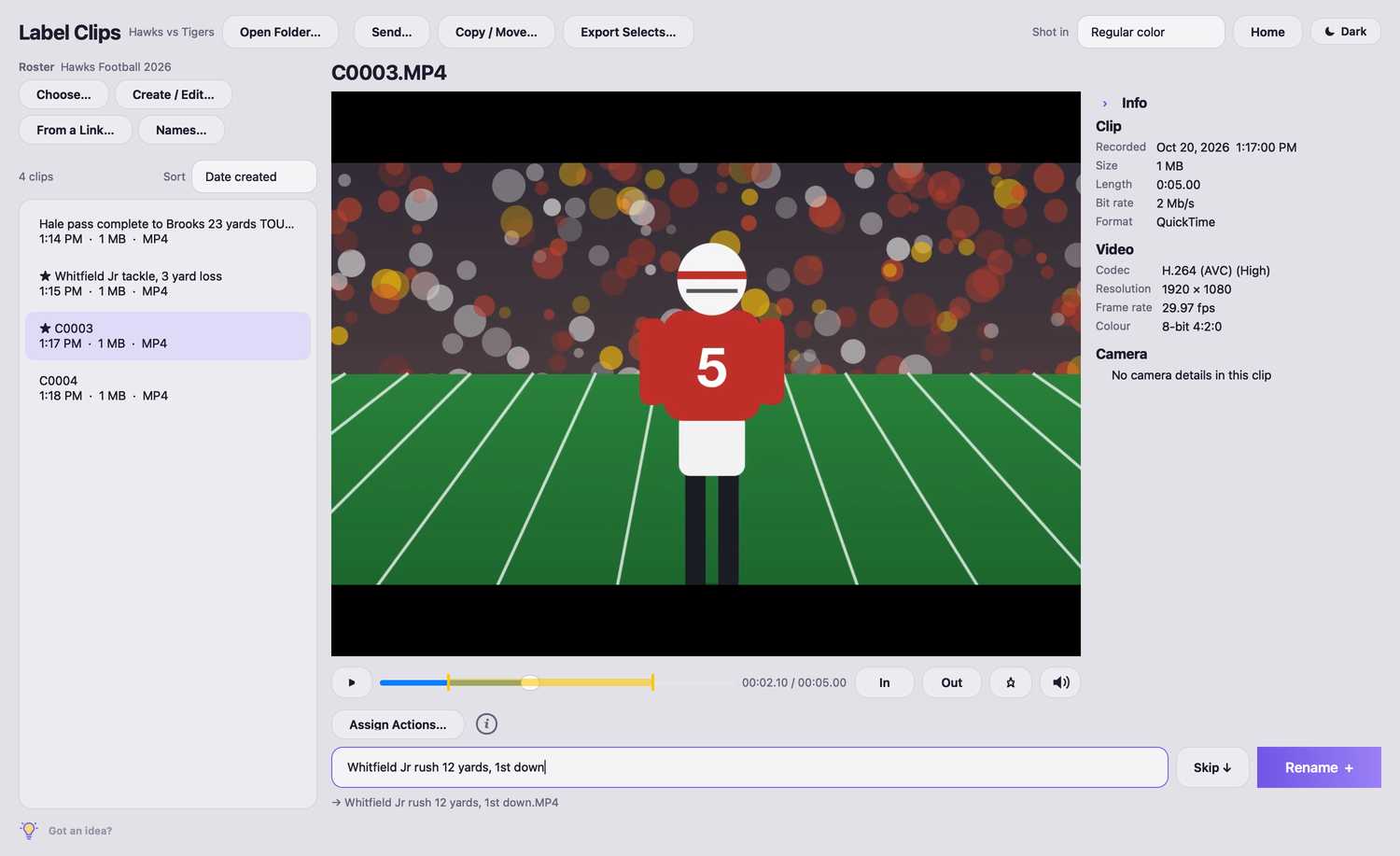
1. Open your clips
- On the Home screen, click Label Clips and open the folder with the game's clips (MXF, MOV or MP4). Work on a copy of the card, not the card itself: renaming is real.
- Choose your team's roster at the top of the clip list (or build one with Create / Edit…, or From a Link…).
- Shot in LOG? Pick your camera under Shot in (Sony S-Log3, Panasonic V-Log, Fujifilm F-Log, Nikon N-Log) to watch in normal color. Sony clips straight off the card set this by themselves. The LOG switch on the video shows them as recorded.
2. Name each clip as you watch
| Press | What happens |
|---|---|
12 then Enter | Puts in #12's last name. If two players share the number (offense and defense), it asks which; or type 12o / 12d. |
| Your codes, then a space | Your own words for each play. Set them in Assign Actions…: pc → pass complete to, td → TOUCHDOWN. |
+ or \ | Renames the clip and goes to the next one. |
⌘S (Ctrl+S) | Renames the clip and stays on it. |
Tab | Play / pause without leaving the name box. |
↓ · / | Skip a clip · back to the previous one. |
Every key can be changed: click the i next to Assign Actions.
3. Mark your best clips
- Star a clip you want whole:
S(or⌥Swhile typing a name). - Want just part of a clip? Press
Iwhere the good part starts andOwhere it ends (⌥I/⌥Owhile typing). The part shows in yellow on the timeline. - Starred and marked clips get a ★ in the list.
Xclears a clip's marks.
4. Export Selects
- Click Export Selects…, keep Selects chosen, pick your editing app and a timeline name, and save the file.
- Open it:
- Premiere Pro: File › Import…, choose the
.xml. It opens as a sequence. - Final Cut Pro: File › Import › XML…, choose the
.fcpxml. - DaVinci Resolve: File › Import › Timeline…, choose the
.fcpxml.
- Premiere Pro: File › Import…, choose the
You get a timeline of just your selects, in the order they were shot, each trimmed to its In and Out and named with your label. Nothing is copied or re-rendered: the timeline points at your original clips, so it opens in seconds. Keep the clips where they are (or relink them in your editing app if you move them).
Good to know
- Renaming never touches clips inside a camera card's folders; copy the clips off the card first. Sony's
M01.XMLfiles are renamed along with their clips. - The Info panel shows each clip's recording time, timecode, codec, frame rate and, when the camera wrote it, the camera, lens and picture profile.
- Send… and Copy / Move… deliver clips to the same Dropbox, Google Drive, Box, OneDrive or FTP destinations as your photos.
Try it
Metadata Express runs on Mac and Windows, with a 14-day free trial. Download it here. Questions? Send us a message.
More guides: Tag photos by jersey number · Send photos to editors during a game · Make a roster file